
Here’s a puzzle I ran into today: I had a picture on my iPhone that I needed on my Fedora workstation. Simple, right? Except I have literally nothing connected by way of cloud storage on that machine. No iCloud, no Dropbox, no Google Drive.
So I thought I’d be clever: upload the image to a Claude project from my phone, open the Claude app on Linux, and copy it from there. That part worked beautifully. The image was in my clipboard. But there was no “save as” option anywhere, and an image in the clipboard is not the same as an image on disk.
Here’s how I turned it into a file.
What didn’t work: pasting into Dolphin
In theory, KDE’s Dolphin file manager can do this for you: open a folder, hit Ctrl+V, and when the clipboard holds raw image data rather than a file, Dolphin asks for a filename and saves it. In practice, mine greeted me with this:
Unable to create KIO workerThat means one of the KIO workers (the little plugins Dolphin uses for different kinds of operations) couldn’t start. It’s typically a missing or out-of-sync kio-extras package, or a Flatpak build of Dolphin that doesn’t ship the worker it needs. Worth investigating another day, but not what I wanted to deal with right then.
What did work: wl-paste
Fedora KDE runs on Wayland by default, and the wl-clipboard package gives you two tiny command line tools to talk to the Wayland clipboard: wl-copy and wl-paste. Install it first:
sudo dnf install wl-clipboardNow ask the clipboard what it’s actually holding:
wl-paste --list-types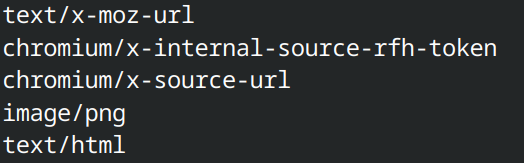
This step matters. Apps can offer the same clipboard content in several formats at once (MIME types), and you want to know which image type is on offer. You’ll see something like image/png, image/jpeg or perhaps image/webp. Pick the one that’s listed and redirect it into a file:
wl-paste --type image/png > photo.pngThat’s it. The file lands in whatever directory your terminal is in, and you can open it in any image viewer. Swap image/png for image/jpeg (and the file extension to match) if that’s what the clipboard offers.
If --list-types only shows things like text/html or text/plain, there’s no actual image data in the clipboard, just a reference or a link to one. In that case no amount of pasting will produce a file, and you’ll need to transfer it another way (see below).
On X11 instead of Wayland?
If you’re running an X11 session, wl-paste won’t help, but xclip does the same job:
sudo dnf install xclip
xclip -selection clipboard -t TARGETS -o          # list available types
xclip -selection clipboard -t image/png -o > photo.png
Not sure which one you’re on? echo $XDG_SESSION_TYPE will tell you.
GUI alternatives
If you’d rather click than type, most image editors can create a new document straight from the clipboard. In GIMP it’s File – Create – From Clipboard, and in Krita it’s File – New – Create from Clipboard. From there you can export in whatever format you need.
The better fix for next time
Going via the clipboard works, but it’s a detour, and depending on how the source app hands the image over, it may be re-encoded or downscaled on the way. For getting files from an iPhone to a Linux box without any cloud storage, there are two much nicer options that work over your local network:
- KDE Connect has an iOS app, and the desktop side is already built into Plasma. Pair the two (they need to be on the same Wi-Fi), then use the iPhone’s share sheet to send the original file straight to your Downloads folder. KDE even offers to set this up during installation. I declined at the time, which is how I ended up here.
- LocalSend is essentially an open source AirDrop that works across iOS, Android, Linux, macOS and Windows. It’s on Flathub, needs no account, and just works.
Still, it’s good to know that when an image is sitting in your clipboard with nowhere to go, one wl-paste command will turn it into a proper file. I’ll definitely need this again.