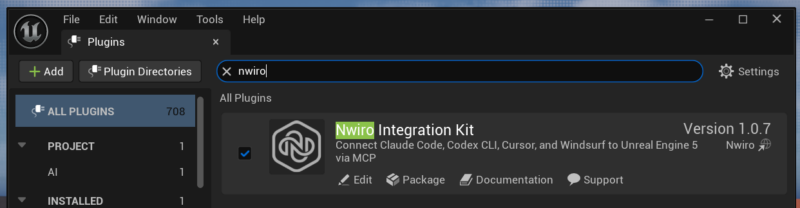
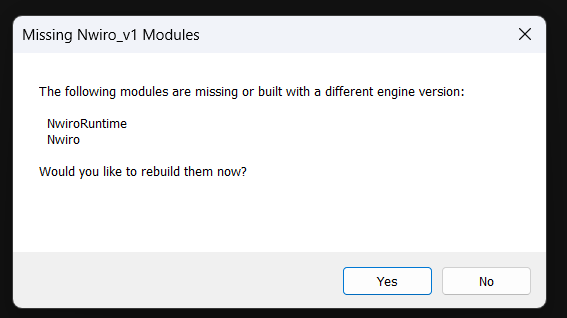
Funny story: I downloaded Nwiro from Cosmos. I got it as part of a Humble Bundle purchase, not really knowing what it was until recently. I thought it was as easy as download, copy into my project and run. But no. Of course not. That’s because the Cosmos version doesn’t come with pre-compiled binaries.
Here’s a really quick check-list on how I got it to work.
- remove the offending plugin from your project temporarily so that UE can start
- add an empty C++ class to the project (in Unreal Engine: Tools – New C++ Class)
- this will make your project compile-able
- right-click on your main .uproject file and choose “Generate Visual Studio Project Files” (via Show More Options in Windows Explorer)
- open the generated .sln file in Visual Studio, set the build configuration to Development Editor
- make sure the Unreal Editor is closed
- in the Solution Explorer on the right, find your project (under Games), right-click it and select Build
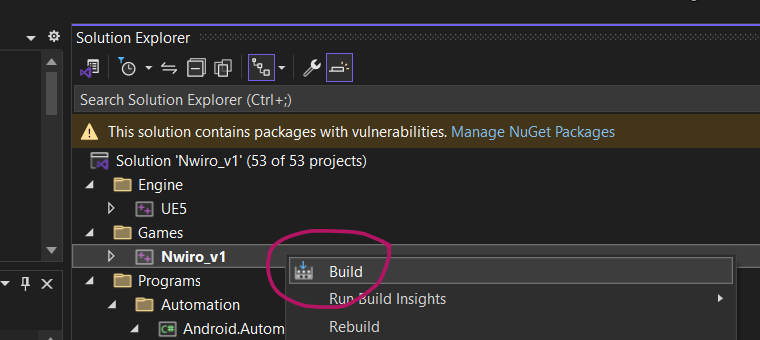
This will set off and build files necessary so that your plugin can be compiled. It’s a one-off job, so you won’t have to do it again.
Next, put the plugin back into your project and start UE. You’ll see the same window as initially, but now a click on YES will actually work and build your plugin. It’ll do so against the current Unreal Engine version used by your project from the source code that every plugin should ship with (according to FAB rules, source code must be included so that users with custom UE versions can make any plugin from the marketplace work).
You should see something like this, after which the plugin should be enabled and work as intended.