
I’ve installed Claude Code on my second less than two months ago, and when I sat down at my main workstation today to do it again, I’ve noticed the instructions have already changed. That’s the pace of this field: blink twice and your bookmarked setup guide is a historical document. The good news is that it changed for the better — the process is now shorter, friendlier, and doesn’t even require admin rights.
Here’s how it works this week (in July 2026).
What’s Claude Code again?
Claude Code is Anthropic’s agentic coding tool. Rather than pasting snippets into a chat window, and getting more snippets back, Claude Code lives where your code lives: it reads your project, edits files, runs commands, and works through problems with you. It started life as a terminal-only tool, but these days there’s a proper VS Code extension with an integrated interface — and that’s the route I’d recommend for most people, as we’ll see below.
You’ll need a paid Claude subscription (Pro, Max, Team, or Enterprise) or an Anthropic Console account. The free plan doesn’t include Claude Code (unlike ChatGPT’s Codex, which is a similar tool).
Step 1: Install the CLI (one line, no admin)
Open a regular Command Prompt — no “Run as administrator” required, which was a pleasant surprise — and paste:
curl -fsSL https://claude.ai/install.cmd -o install.cmd && install.cmd && del install.cmdIf you prefer PowerShell, the equivalent is:
irm https://claude.ai/install.ps1 | iexQuick aside for fellow PowerShell tourists: irm is short for Invoke-RestMethod (think curl), and iex is Invoke-Expression (run what you just downloaded). It’s the PowerShell dialect of the classic curl ... | bash pattern from the Mac and Linux world.
One gotcha: don’t mix them up. The CMD version fails in PowerShell with a cryptic complaint about && not being a valid statement separator, and the PowerShell version fails in CMD because irm isn’t a thing there. Your prompt tells you where you are: PS C:\ means PowerShell, plain C:\ means CMD.
I’m more of a command-line man myself, so I’ll stick to that. Here’s what it looks like once complete.
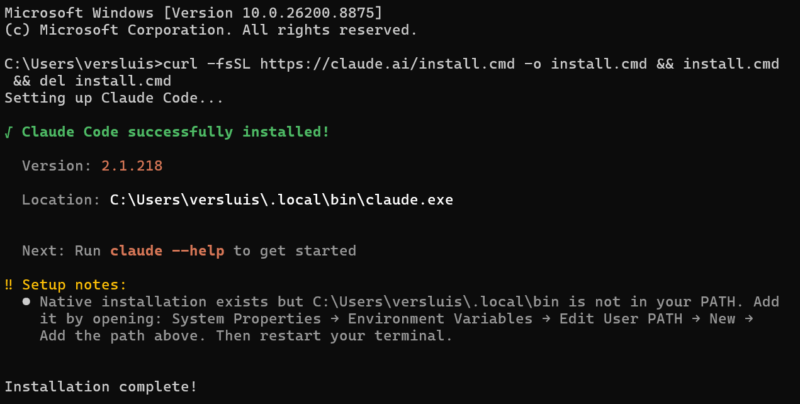
The installer downloads a native binary into your user profile (C:\Users\you\.local\bin\claude.exe) rather than Program Files, which is precisely why no admin rights are needed — and why it can silently keep itself up to date in the background from now on. No more manual version wrangling.
Step 2: Sign in
Start Claude Code once and it’ll ask you to log in. It doesn’t add its own path to the shell, so you have to move there manually (via cd .local\bin), then type “claude” and it should start.
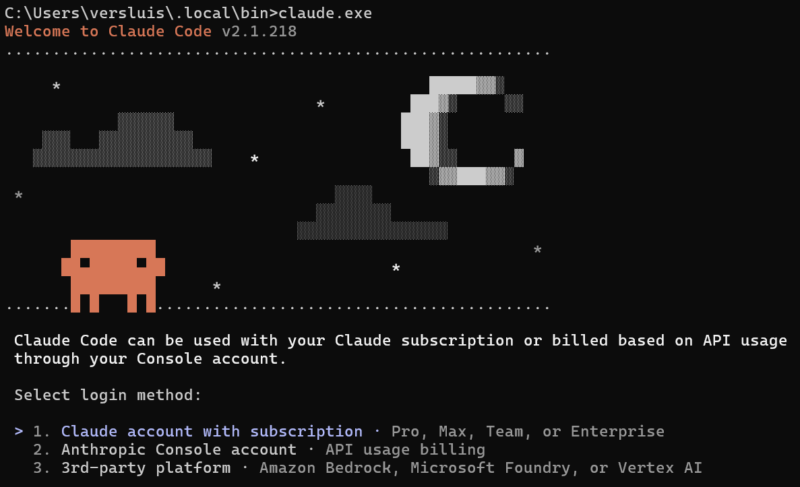
On the next screen, pick “Claude account with subscription”, your browser opens, you approve, and you’re done. (Do admire the pixel-art mascot while you’re here — his name is Clawd, apparently. I didn’t know he had a name, but it’s super charming and differentiates him from Claude).
Step 3: The VS Code extension (the way you’ll actually use it)
The terminal is fine, but the VS Code extension is where Claude Code gets comfortable: an integrated chat panel, inline diffs you can review before accepting anything, plan review, @-mentions for files and line ranges, and multiple sessions in tabs. It even bundles its own copy of the CLI, so strictly speaking the panel works without Step 1 — though you’ll still want the standalone CLI for terminal use.
In VS Code, press Ctrl+Shift+X to open the Extensions view and search for “Claude Code”.
And here’s the important bit: the search results are a minefield of similarly-named third-party extensions. The one you want is called “Claude Code for VS Code”, published by Anthropic with the verified-publisher checkmark, currently north of 21 million installs. When I first went through this on the Z840, the official one wasn’t even at the top of the results, and it was genuinely confusing. Check the publisher before you click Install, here’s what it looks like:
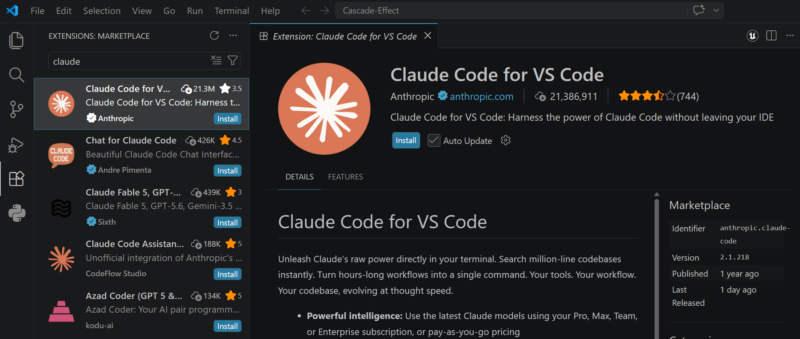
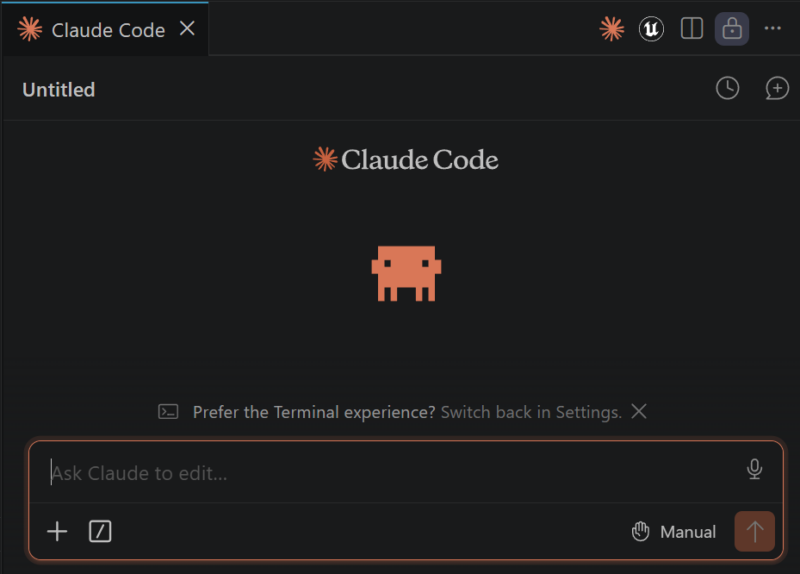
Once installed, open your project folder (File → Open Folder), click the orange Spark icon, and sign in with the same account. Nice detail: the extension and the CLI ship in lockstep — mine both report version 2.1.218.
That’s it
Genuinely — that’s the whole installation. One pasted line, one browser login, one extension. Compare that to the Node.js-and-npm dance of the early days, and the direction of travel is clear: this is becoming an appliance rather than a science project.
In the next post, we’ll put the new arrival to work on a real problem: an Unreal Engine crash that’s been plaguing one of my projects. Stay tuned.