
Here’s a fun mystery that had me questioning my sanity today. I ran a PowerShell script from the VS Code terminal — worked perfectly. Half an hour later, same machine, same folder, same script, I ran it again and was greeted with this:
./prep-art.ps1 : File D:\GitHub Repos\Cascade-Effect\tools\prep-art.ps1 cannot be loaded
because running scripts is disabled on this system. For more information, see
about_Execution_Policies at https:/go.microsoft.com/fwlink/?LinkID=135170.
    + CategoryInfo          : SecurityError: (:) [], PSSecurityException
    + FullyQualifiedErrorId : UnauthorizedAccess
Running scripts is disabled? It was enabled thirty minutes ago! Nothing was installed, nothing was updated, no settings were touched. Windows had simply decided it no longer liked me.
Except it hadn’t. It turns out I was never “allowed” to run scripts in the first place — I had just been sitting in a blessed terminal without knowing it. Let me explain, because this will bite you too if you spend most of your time on Linux and macOS and only visit Windows occasionally, like I do these days.
VS Code has two things that look like a PowerShell terminal
This is the entire mystery in one sentence. VS Code can show you two nearly identical PowerShell prompts, and they play by different rules:
The plain PowerShell profile. This is what you get when you open the terminal panel and pick “powershell” (or “pwsh”) from the dropdown. It’s an ordinary shell, and it obeys the machine’s real execution policy — which on a Windows client machine defaults to Restricted. Restricted means exactly what the error says: no scripts, full stop.
The PowerShell Integrated Console. This one is spawned by the PowerShell extension, and here’s the kicker: it launches itself with -ExecutionPolicy Bypass, so scripts always run in it. The extension does this so its own tooling (IntelliSense, debugging, F5-to-run) never trips over the policy.
Both appear in the same terminal panel. Both show a familiar PS D:\> prompt. The only visible difference is the name in the terminal list on the right-hand side of the panel: one says powershell, the other says PowerShell Extension.
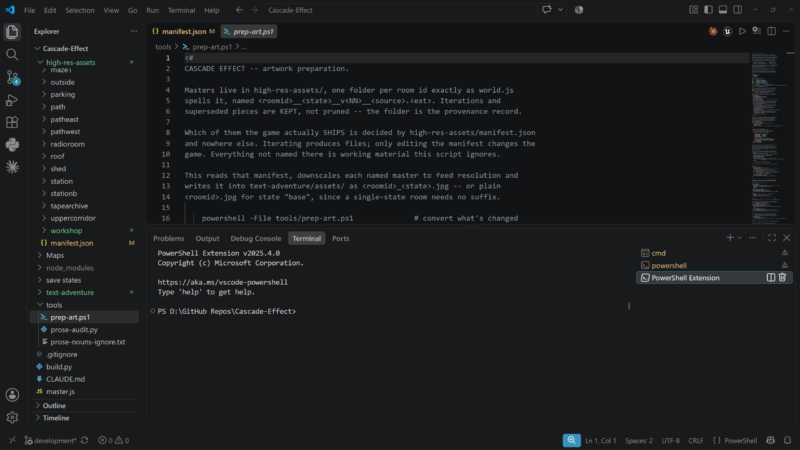
How you end up in the blessed one without noticing
The PowerShell extension doesn’t start with VS Code — it wakes up the moment you open a .ps1 file in the editor. You’ll see “Activating extension” flash in the status bar, and then the PowerShell Extension console quietly appears in your terminal panel and often becomes the active terminal.
So here’s what happened to me, reconstructed:
- First session: I clicked my
prep-art.ps1file to look at it. Extension woke up, spawned its console, and that’s the terminal I typed into. Scripts ran. Life was good. I concluded — wrongly — that script execution was enabled on this machine. - Second session: I came back to the repo without opening the .ps1 file. I opened the terminal panel myself and picked PowerShell from the dropdown. That’s the civilian shell with the machine’s real Restricted policy. Same prompt, same folder, script refused to load.
Nothing changed between the two sessions. I changed rooms.
(For the record: this has nothing to do with VS Code’s Workspace Trust feature — the “do you trust this folder?” prompt. That governs what extensions may do, not PowerShell’s execution policy.)
The diagnosis
In the failing terminal, run:
Get-ExecutionPolicy -ListIf every scope says Undefined or Restricted, you’ve found it — the machine never allowed scripts, and any terminal where they worked was bypassing the policy for you.
The fix
The clean, sane, one-time fix — no admin rights required:
Set-ExecutionPolicy -Scope CurrentUser -ExecutionPolicy RemoteSignedRemoteSigned allows locally created scripts (anything you wrote yourself, and anything in a git repo — git clones don’t carry the “downloaded from the internet” mark) while still blocking unsigned scripts that arrive from the web. It’s the standard developer setting, and once it’s in place, the blessed and civilian terminals behave identically. Mystery permanently dissolved.
If you’d rather not change policy at all, there’s a per-invocation escape hatch:
powershell -ExecutionPolicy Bypass -File .\prep-art.ps1One more gotcha: PowerShell 5.1 and 7 keep separate policies
Windows PowerShell 5.1 (the one built into Windows) and modern PowerShell 7 store their execution policies in different places — the registry versus a powershell.config.json. Setting the policy in one does nothing for the other. If you use both, run the Set-ExecutionPolicy line once in each.
Not sure which one you’re in? Ask the shell:
$PSVersionTable.PSVersionMajor version 5 means Windows PowerShell 5.1 (PSEdition reports “Desktop”); major version 7 means modern PowerShell (PSEdition reports “Core”). The startup banner gives it away too — 5.1 announces itself as “Windows PowerShell” with a copyright line, while 7 says “PowerShell 7.x.x”. In VS Code’s terminal dropdown they appear as “powershell” and “pwsh” respectively.
The takeaway
If a PowerShell script runs in one terminal and not another on the same machine, don’t assume Windows has turned against you. Check which terminal you’re in — the name in the terminal panel’s list tells you — and check the actual policy with Get-ExecutionPolicy -List. Chances are you were never allowed to run scripts at all; you just happened to be standing in the one console that doesn’t ask.