
This is the Linux companion to my macOS piece on installing novelWriter via pipx — though as it turns out, if you’re on Fedora, you can skip most of it.
The easy way: it’s in the official Fedora repos
novelWriter has been packaged in Fedora’s main repository since Fedora 41. If you just want it working with minimum fuss:
sudo dnf install novelwriterOne command. dnf pulls in the whole dependency chain automatically, including PyQt6 and the enchant2/hunspell spell-checking stack described in Step 3 below — no manual step needed there either.
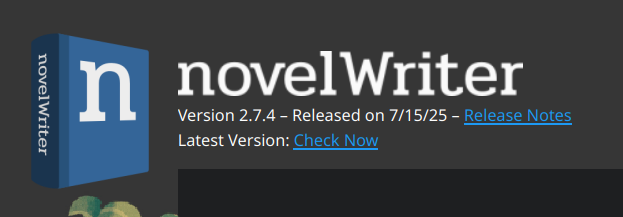
The catch: Fedora’s package trails upstream, and not by a little. As of writing, Fedora 44 ships novelwriter 2.7.4 — a release from May 2025 — while the PyPI release is already at 26.2. The project has since moved to calendar-based versioning, and the Fedora package follows its own packaging and testing cycle rather than upstream’s release cadence, so don’t expect it to catch up quickly.
You can check what your machine actually has with:
dnf info novelwriterThat version gap is bigger than it looks
It would be easy to read “sixteen months behind” as meaning you miss out on some recent features. It’s more than that: 2.7.4 and 26.2 save your work in different file formats.
- 2.7.4 writes
nwProject.nwxatfileVersion 1.5, and each document ascontent/<handle>.nwdwith%%~metadata header lines. - 26.2 writes
fileVersion 1.6, and each document ascontent/<handle>.mdwith a TOML header fenced by+++.
Credit where it’s due: novelWriter handles this properly. Open an older project in 26.2 and it asks before touching anything, in plain language:
The file format of your project is about to be updated. If you proceed, older versions of novelWriter will no longer be able to open this project. Continue?
Say yes and the conversion itself is excellent — I diffed a converted document against its original afterwards and the prose was byte-for-byte identical, with the creation dates, text hash and structural metadata all carried across intact. Nothing is lost.
But it is one-way. The .nwd files are rewritten as .md and the originals deleted. There is no “downgrade project” option.
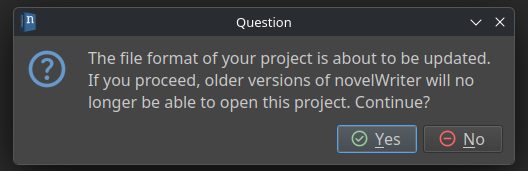
That dialog tells you the exact truth. What it can’t tell you is what “older versions” means in your life — and if the answer is “the Fedora laptop I write on at weekends”, this is the moment to stop, click No, and go and upgrade that machine first. Cloud-sync folders make the stakes higher again, because the conversion propagates to every other machine before you’ve had a chance to notice.
So the honest recommendation is:
- One machine, and happy with the packaged version?
dnf install novelwriteris genuinely all you need — you can stop reading here. - Writing across several machines, or on a distro with no package? Use pipx below, and put every machine on the same version before opening a shared project anywhere.
And whichever you choose: keep your projects under version control, or at least take a copy before a version jump. novelWriter’s files are plain text, so git handles them beautifully — and it means a format conversion is something you can inspect, verify and undo rather than something that simply happens to you.
The same pip problem, a different fix
Fedora hit PEP 668 protections back in Fedora 38 — well before Apple caught up on macOS. So if you’ve tried pip install novelwriter on a recent Fedora box, you’ve already met:
error: externally-managed-environmentThe good news: Fedora ships pipx as a proper distro package, so there’s no Homebrew-style bootstrap step first — it’s a single dnf install away.
pip vs pipx, the short version
Full breakdown in the macOS article if you want it — the short version: pip installs into whichever Python environment is currently active, which is why it collides with Fedora’s protected system Python. pipx gives each command-line app its own isolated environment and just symlinks the executable onto your PATH, so it sidesteps the protection entirely rather than fighting it.
Step 1: Install pipx
sudo dnf install pipx
pipx ensurepath
Close and reopen your terminal (or source ~/.bashrc — or ~/.zshrc, whichever shell you’re running) so the PATH update takes effect.
Step 2: Install novelWriter
pipx install novelwriterStep 3: Turn on proper spell-checking
Here’s the one place Linux needs an extra step that macOS doesn’t: on macOS, pyenchant’s wheel quietly bundles a working copy of the enchant library, so spell-check works out of the box. On Linux, that native library isn’t bundled — you install it yourself through your package manager. Fedora packages it as enchant2, plus at least one hunspell dictionary for whichever language you write in:
sudo dnf install enchant2 hunspell-en-USSwap hunspell-en-US for whichever language you need — dnf list hunspell* shows everything available.
Step 4: Launch it
novelwriterAlready installed it with dnf? Switching to pipx
If you took the one-command route and now want the current release, remove the packaged copy first. Otherwise you end up with two novelwriter executables and your PATH order silently decides which one opens your projects — and since the two versions disagree about file formats, that is not a coin flip you want running unattended.
sudo dnf remove novelwriter
pipx install novelwriter
novelwriter --version
That last line is the one that matters — confirm it reports the version you expect before you open anything you care about. which novelwriter will tell you which copy is winning if the number looks wrong.
Removing the dnf package leaves enchant2 and your hunspell dictionaries in place, so spell-checking keeps working. Your projects live in your own folders and aren’t touched by any of this.
Keeping it up to date
pipx install --upgrade novelwriterWorth doing on every machine at roughly the same time, for the format reasons above.
Correct as of novelWriter 26.2 on Fedora 44, September 2026 — with the version gap confirmed the hard way, on a Fedora install running 2.7.4 from the updates repo alongside a Mac on 26.2. The conversion was run on real, git-tracked projects and verified afterwards. See the macOS version of this article for the full pip-vs-pipx explainer and the equivalent Homebrew-based steps.