
Funny story: while I was working today, Windows 11 decided to restart my computer – without warning – and apply a bunch of updates I couldn’t avoid. They made my Start Menu go all wonky and display ALL pinned apps I had in a previously neatly grouped arrangement of pages. It’s so bad, it makes you want to laugh. Or revert the update, only to wait for it to apply itself again.
I cannot adequately convey just how much I hate Microsoft with a passion for finding that behaviour acceptable, nor do I understand how a company like that is still in business. But let’s not discuss that here, and instead take a look at how to FIX what they thought was a hip and cool idea before shoving it down my throat.
Here’s what my Start Menu ended up looking like after the update.
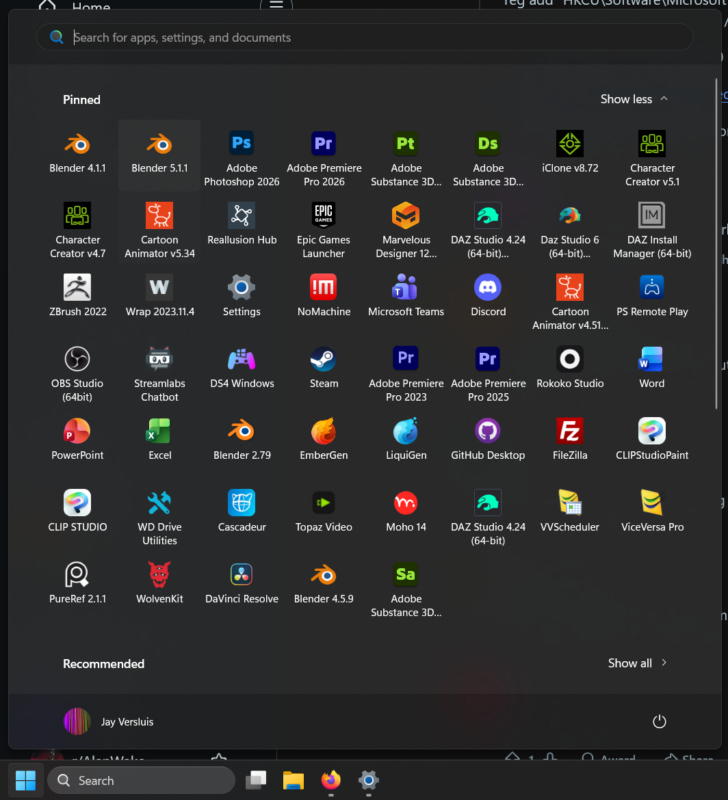
Before it was 6 icons wide and perhaps as many deep, and I could scroll down page by page for another group. I liked that. Although I couldn’t quite bring that exact layout back, here’s what I’ve managed to achieve after a Group Policy Tweak:
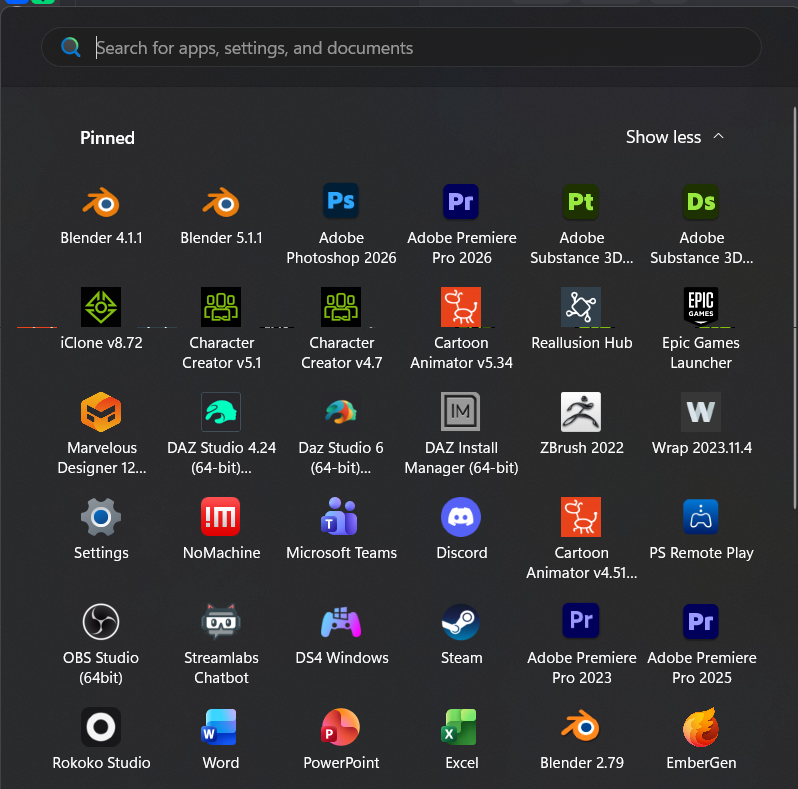
Not quite the same, but at least it’s a tad saner and I think I can live with this. Here’s how I did it: open the Group Policy Editor (search for it, or type WIN+R, followed by “gpedit.msc”). This insane Windows 3.1-esque window opens up.
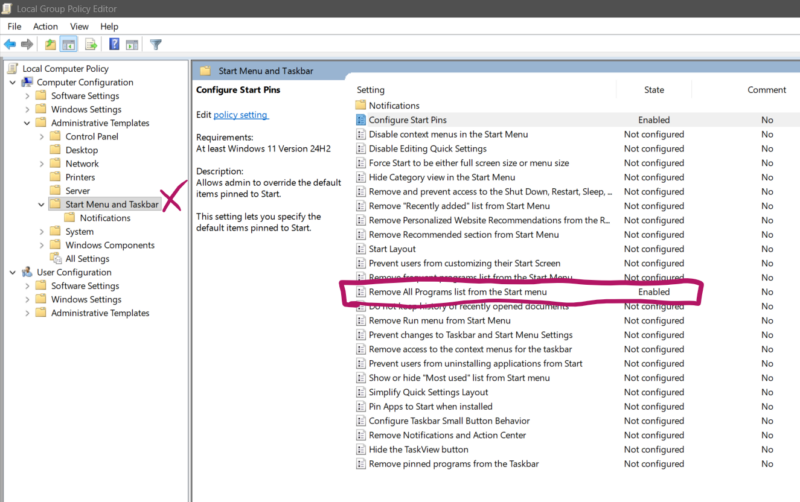
Head over to
- Computer Configuration
- Administrative Templates
- Start Menu and Taskbar
then find an entry called “Remove All Programs list from Start menu”. My state was set to “not configured”, like pretty much all entries in that list. Should they have been? Were they configured at one point? Who on Earth knows, I didn’t even know this section existed. Double-click that entry and another scary window pops up.
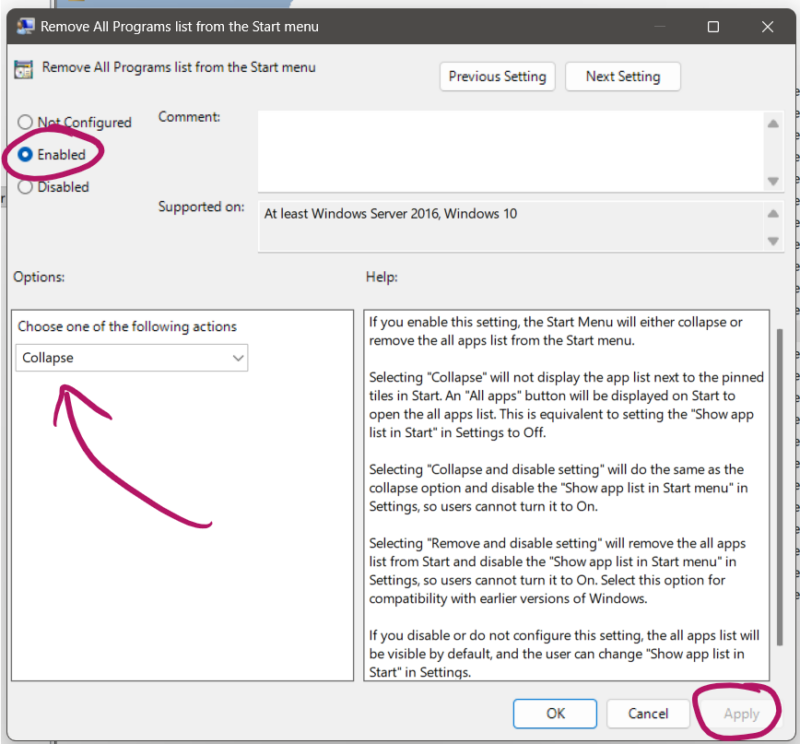
Here, change the “not configured”-ness to “Enabled” and select “Collapse” in the list of other options. Someone wrote a bit of a text description of what each thing will do, without actually explaining it properly, so well done for that. Hit Apply and click on the Start Menu to see the change. No restart necessary.
Kudos to Vyacheslav Gudimov for this tip!