
Tags are git’s way of bookmarking a moment in time — perfect for marking releases. Six months from now, v0.8.4 will still mean exactly that build, byte for byte. VS Code supports tags, though in typically understated fashion: the options exist, the dialogs don’t explain themselves, and the one command everybody needs is filed where nobody looks. Let’s fix all of that.
Tags vs branches in one sentence
A branch is a pointer that moves; a tag is a pointer that doesn’t. Both are tiny references to a commit. When you commit on development, git moves the development pointer forward. A tag like v0.8.4 stays nailed to its commit forever. Branches are for work in motion, tags are for moments in time.
Git actually has two kinds of tag: lightweight (just the pointer) and annotated (the pointer plus a tagger name, date and message). Convention says annotated for releases — the message is a free changelog line baked into the repo.
Creating a tag in VS Code
Open the Command Palette (Ctrl+Shift+P) and run Git: Create Tag. Alternatively, hover over the CHANGES header in the Source Control panel, click the ⋯ menu that appears, and go to Tags → Create Tag…
Either way, VS Code now asks you two questions in two identical-looking input boxes, without labelling either of them. Here’s the decoder ring: the first box is the tag name, the second is the tag message — which means VS Code creates an annotated tag, the good kind. Because I didn’t know that, my first tag ended up named v0.8.4---typewriter-text-reveal: I’d typed what I thought was a description into the name field, and since tag names follow the same rules as branch names (no spaces allowed), my spaces became dashes. It works, but a cleaner convention is a short name (v0.8.4) and let the message carry the prose (“typewriter text reveal”). That keeps your tag list tidy once you have twenty of these.
Your new tag shows up as a little label in the Graph view, right next to the branch badges on the tagged commit:
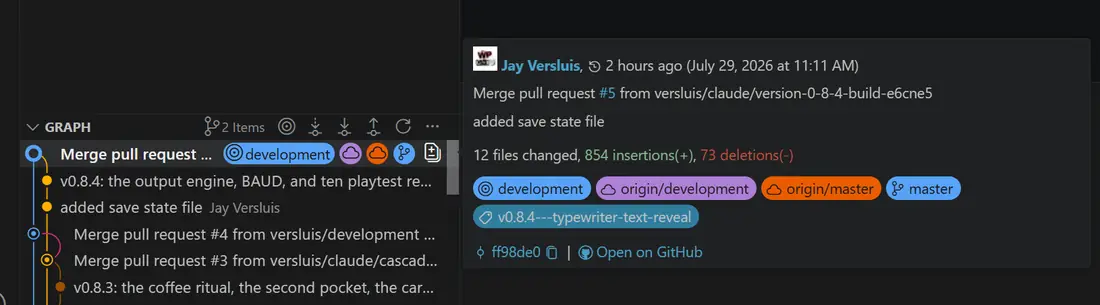
You can also tag retroactively: right-click any older commit in the Graph view and choose Create Tag from there.
The gotcha: pushing tags
Here’s the thing that catches everyone at least once: git push does not push tags. Your tag stays local until you explicitly send it. Many a developer has tagged a release, pushed, and wondered why GitHub shows nothing under Tags.
In VS Code, the option naturally does not live next to the regular Push, where you’d expect it — it’s under that same hover-only ⋯ menu, in Tags → Push Tags:
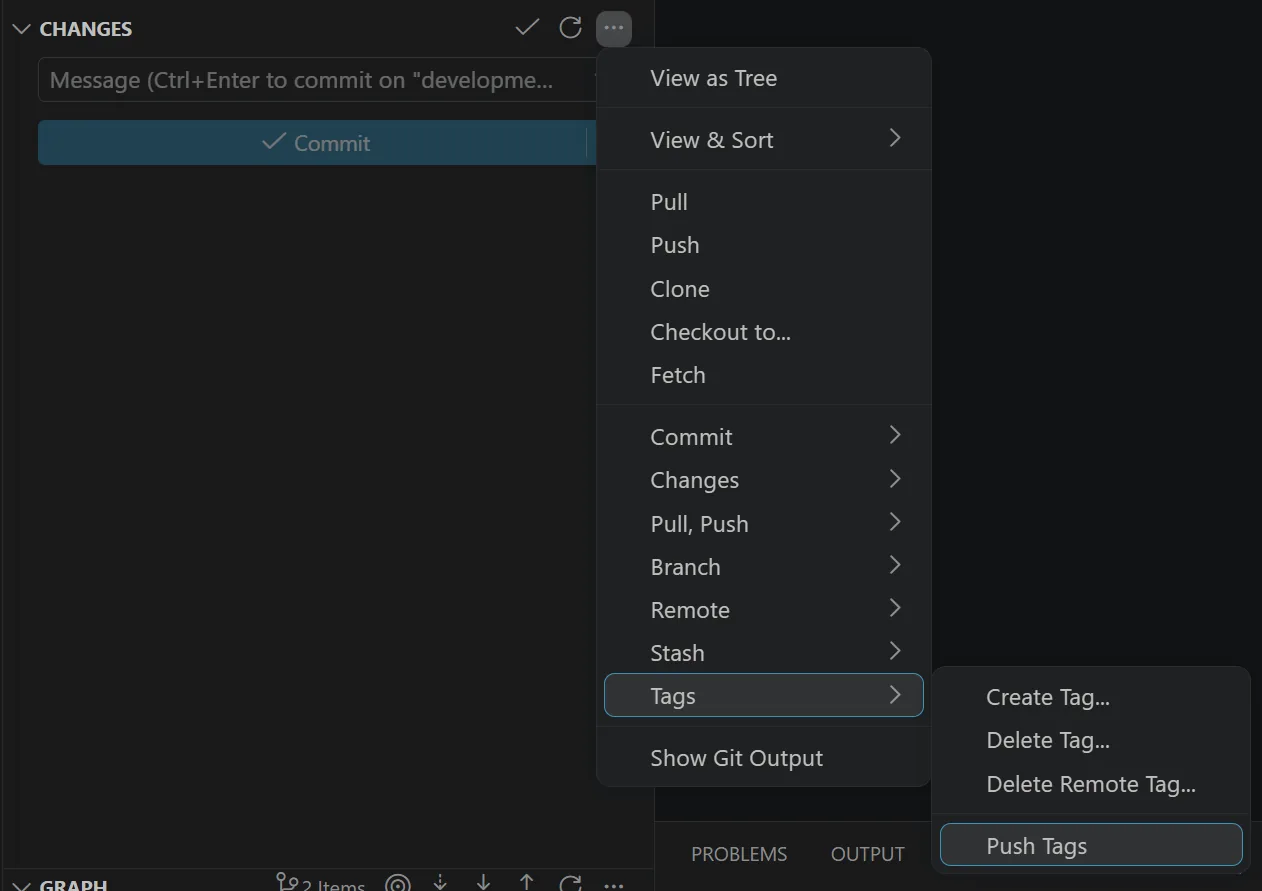
After pushing, check your repo on GitHub — the Tags counter sits right next to the branches. If your tag’s there, you’re done.
The command line cheat sheet
git tag -a v0.8.5 -m "message"     # create annotated tag on current commit
git tag                            # list tags
git push --tags                    # send them all to GitHub
git checkout v0.8.5                # visit an old version
That last one is how tags pay off: you can check out any tagged version and see your project exactly as it shipped. Git will warn you’re in a “detached HEAD” state — which just means “you’re visiting history, not on a branch; have a look around, then check out development to come home.”
Tags usually come right after a merge — if that part of the workflow is fuzzy, see How to merge Git branches in VS Code.