
Here’s a situation that comes up all the time when you’re working with pull requests: you’ve merged a PR into master on GitHub.com, so master is now up to date in the cloud — but your local copy doesn’t know about it yet, and your development branch is now behind master. What you want is to pull the changes down, then merge master into development so both branches are in sync again.
The command line version is delightfully simple. The VS Code version… exists, but the Merge option is hidden so well that I genuinely thought it wasn’t there. Let’s do both.
The command line version
git checkout master
git pull
git checkout development
git merge master
git push
In English: switch to master, download the merged changes from GitHub, switch back to development, fold master’s new commits into it, and push development back up so the remote copy is in sync too.
One thing that trips people up is the direction of a merge: merging always pulls the named branch into the branch you’re currently standing on. You stand on development and merge master, and master’s commits flow into development. Master itself is untouched. If your development branch hasn’t diverged (i.e. all its commits are already part of master’s history via the PR), git will do a “fast-forward” merge — it simply slides the development pointer up to match master, no merge commit needed.
The VS Code version
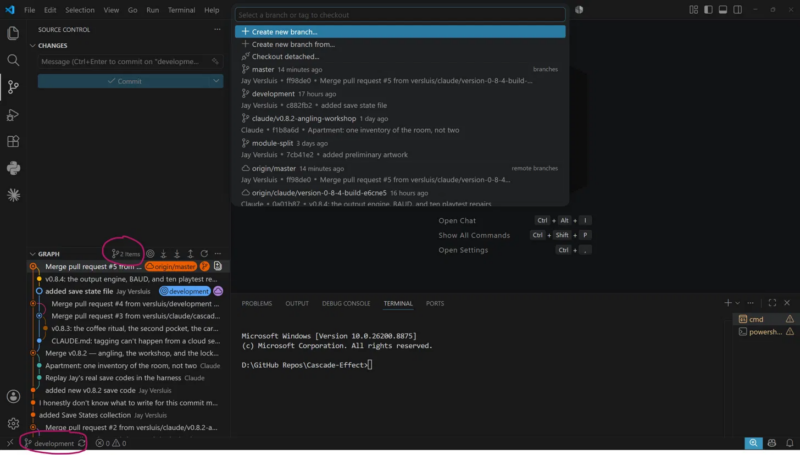
Switching branches is the easy part. The branch indicator in the bottom-left corner of the status bar shows which branch you’re currently on; click it and a picker opens at the top of the window (“Select a branch or tag to checkout”). Pick master, then click the little sync icon next to the branch name to pull. That’s git checkout master and git pull done.
Now switch back to development the same way. And here’s where it gets silly, because the Merge option is not where you’d expect it. It’s not in the branch picker. It’s not in the Source Control panel’s main overflow menu either — at least not the one you’d naturally find.
Instead: in the Source Control side bar, hover over the CHANGES section header. Only then does a ⋯ (three dots) overflow menu appear on that row. Click it, and there it is: Branch → Merge… The familiar picker opens at the top, this time listing branches to merge from — choose master, and master’s commits flow into development. Finish with the sync icon to push development back up to GitHub.
Why is this a questionable design choice? Because the Source Control panel lets you disable the Changes section entirely — and if you do, the merge option disappears with it. A fairly essential git operation, tied to an optional, hover-only menu. Ouch.
The reliable alternative: the Command Palette
If you can’t find a git operation in the UI (a recurring theme), the Command Palette always has it. Press Ctrl+Shift+P, type “merge”, and pick Git: Merge Branch… — same thing, and arguably easier to find than the buried menu. Nearly every git operation lives in there under “Git: …”.
Tagging your freshly merged release? That’s its own little adventure — see How to create and push Git tags in VS Code. And if you’d like to understand why the VS Code Git UI is arranged the way it is, I’ve written up a longer piece on that too.