
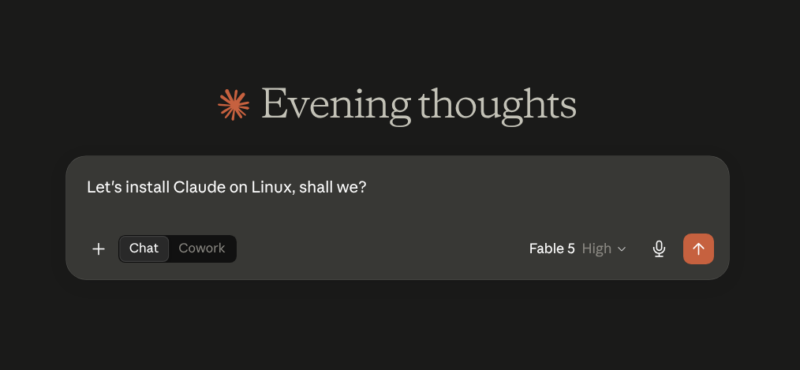
On June 30, 2026, Anthropic released the official Claude Desktop app for Linux — a genuine first-party build, in beta, with the same Chat, Cowork and Code features as the Mac and Windows versions. Wonderful news, with one catch: it’s only offered for Ubuntu and Debian, delivered as a .deb from Anthropic’s own apt repository. Fedora, RHEL and friends aren’t invited.
My machines run Fedora, and rather than wait for official support, I found not one but three ways to run it — tested across three machines, including a fifteen-year-old MacBook Air, because if it runs comfortably there, your machine will be definitely fine too.
Route 1 is the tinkerer’s path and teaches you a trick that keeps paying forever. Routes 2 and 3 are for when you just want the app. Pick your adventure.
Route 1: Distrobox — run Anthropic’s own Debian package on Fedora
Distrobox uses Podman (already on every modern Fedora) to run a complete userland of another distribution — Debian, in our case — inside a container. But calling it a “container” gives the wrong idea. Docker-style containers are about isolation; Distrobox is about the opposite. It deliberately punches holes everywhere: your home directory is shared, the display server is shared, audio, D-Bus, even USB devices. The kernel remains Fedora’s — only the userland is Debian’s.
That’s exactly what’s needed here, because “an app built for Debian” really just means “a binary linked against Debian’s library versions”. Give it those libraries, let it live in your real session, and it neither knows nor cares what the host distribution is. Apps launched inside the box appear as ordinary windows on your desktop — no VM, no remote display, no second desktop. Everything lives in your home directory too (Podman’s storage sits under ~/.local/share/containers), so the experiment leaves your root filesystem essentially untouched. Removing it all later is two commands: distrobox rm deb12 and podman rmi debian:12.
Step 1: Install Distrobox on the host
sudo dnf install distroboxPodman comes along as a dependency if it isn’t already installed.
Step 2: Create and enter the Debian box
distrobox create --name deb12 --image debian:12
distrobox enter deb12
The create step pulls the official Debian 12 image (a few hundred MB). The first enter is the slow one — Distrobox bootstraps the container with its integration packages, a couple of minutes of scrolling text. Then you land at a prompt that looks suspiciously like home, because it is your home, with Debian wrapped around it. Run cat /etc/os-release for the small thrill of seeing “bookworm” on a Fedora machine. One mechanical note: sudo inside the box asks for your password and grants root inside the container only. The host is untouched.
Step 3: Install Claude Desktop — the Debian way, inside the box
From here, the instructions are simply Anthropic’s own, exactly as a Debian user would run them. Fresh Debian images may lack curl, so install that first:
sudo apt update && sudo apt install curl
sudo curl -fsSLo /usr/share/keyrings/claude-desktop-archive-keyring.asc https://downloads.claude.ai/claude-desktop/key.asc
echo "deb [signed-by=/usr/share/keyrings/claude-desktop-archive-keyring.asc] https://downloads.claude.ai/claude-desktop/apt/stable stable main" | sudo tee /etc/apt/sources.list.d/claude-desktop.list
sudo apt update && sudo apt install claude-desktop
You can (and should) verify the signing key before trusting it with
gpg --show-keys /usr/share/keyrings/claude-desktop-archive-keyring.ascthe fingerprint should read 31DD DE24 DDFA B679 F42D 7BD2 BAA9 29FF 1A7E CACE. Expect roughly a 144MB download and about 500MB on disk — it ships its own Electron runtime.
Because the repository lives inside the box, future updates arrive by entering the box and running sudo apt update && sudo apt upgrade — the app updates the Debian way while the host keeps updating the Fedora way. Two package managers, zero conflicts.
Step 4: First launch, and the KWallet wrinkle
Launch it from the terminal first, still inside the box, so any complaints are visible: claude-desktop
And here the first wrinkle appeared (or two wrinkles in fact). The first was a message that the KDE Wallet wizard popped up, asking whether I wanted “classic blowfish” or “GPG” encryption. Two things are notable. First, that’s the host’s KWallet answering: the app inside the Debian box reached across the shared D-Bus session and found Fedora’s wallet service. The punched-holes architecture, demonstrating itself unprompted.
Second, the eternally confusing choice. Pick Blowfish — it means the wallet is encrypted with a password you choose, and it’s how nearly everyone uses KWallet. The GPG option only makes sense if you already actively use a GPG key. The genuinely useful tip: set the wallet password identical to your login password. KDE’s pam_kwallet integration then unlocks the wallet automatically at login, and you’ll never see a wallet prompt again. Set a different password and every credential-hungry app greets you with an unlock dialog — the very nagging that gave KWallet its reputation.
One consequence of the wallet being created mid-session: my first sign-in warned it wouldn’t be saved, because no wallet existed when the app started. On the next launch the credentials stored and stuck. If you see that warning, it heals itself.
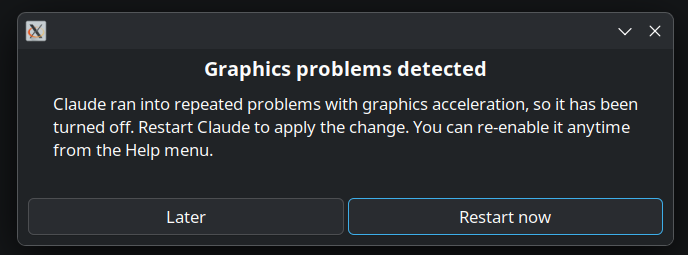
On a subsequent install on my Z840 I encountered a first-run crash as well, depicted above. Apparently it’s nothing heartbreaking, just the system trying to ascertain what is and isn’t possible during first probe. All I had to do was hit “restart now” and the app started just fine.
The wall of scary errors that means nothing
Of course Linux being Linux, there was something else: Launching from the terminal produces an alarming cascade, chief among them: Failed to connect to the bus: No such file or directory (system_bus_socket). This is actually a neat lesson in how Distrobox works. Linux has two D-Bus buses: the session bus (your desktop’s messaging — the shared one that made the KWallet magic work) and the system bus (owned by systemd, carrying OS-level chatter like battery and network events).
A Distrobox container deliberately doesn’t run systemd — it borrows your session rather than being a full OS — so there is no system bus inside the box. Chromium probes for it at startup, finds nothing, complains, and carries on perfectly happily. The tell that none of it matters: the app launches, renders, signs in and works. Chromium’s stderr reads like a minor disaster on any Linux system, even when everything is fine.
Step 5: Make it a first-class citizen
We don’t have to enter Distrobox and launch the app manually every time though. It has a fantastic feature that lets us “export” an app so it appears in our main distro as a fully one-click launchable app, complete with icons. Still inside the box, use the following command to make this happen:
distrobox-export --app claude-desktopNow exit back to Fedora — and a “Claude (on deb12)” entry appears in the application menu, with the suffix politely noting which box it came from. I was blown away!
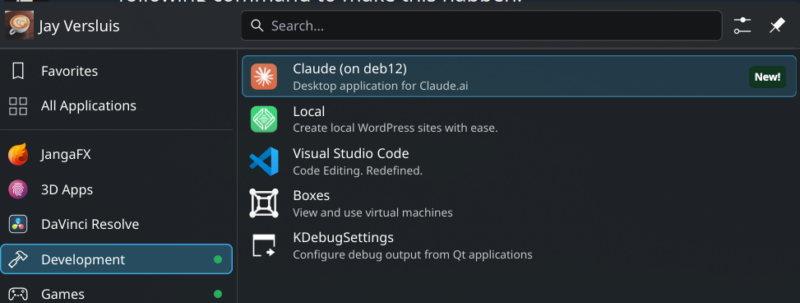
Apparently this isn’t magic (says Claude), instead it’s freedesktop.org standards honored end to end: distrobox-export drops a well-formed .desktop file into ~/.local/share/applications, and your desktop does what the spec promises. One click launches the app (starting the container on demand), the icon shows in the task bar, credentials persist via the wallet. It feels exactly as native as the Mac and Windows versions — which, given the stack underneath, still makes me smile.
For me as a puny human, it still looks like plain magic!
Route 2: The community RPM repository — for the time-poor
If you’d rather skip the container entirely: the well-known aaddrick/claude-desktop-debian project — which for years repackaged the Windows build for Linux — now repackages Anthropic’s official Linux .deb into .rpm, AppImage and AUR builds, byte-identical apart from two small Linux-gap patches (one of which fixes Quick Entry focus on KDE). Two commands and you’re done:
sudo curl -fsSL https://pkg.claude-desktop-debian.dev/rpm/claude-desktop-unofficial.repo -o /etc/yum.repos.d/claude-desktop-unofficial.repo
sudo dnf install claude-desktop-unofficial
Note the honest package name — unofficial — but what’s inside is Anthropic’s actual app bundle. Updates then ride along with your normal dnf upgrade. On my 2011 MacBook Pro, sign-in persisted on the very first attempt (the keyring already existed, so no wallet wizard), and the tray icon, menu entry and behaviour were indistinguishable from the Distrobox install — because it is the same app, differing only in plumbing.
This route also ships a diagnostic the official build doesn’t have: claude-desktop-unofficial --doctor checks your display server, sandbox permissions, keyring, and — usefully — Cowork readiness, which on Linux needs a KVM stack. If the doctor complains, sudo dnf install qemu-kvm qemu-img edk2-ovmf supplies the missing pieces; Fedora’s edk2-ovmf package even ships compatibility symlinks at the Debian-flavoured /usr/share/OVMF path the app probes for.
Even my 2011 MacBook Pro passed every check — Claude-driven virtual machines, certified on Sandy Bridge.
Route 3: The RPM via Discover — no terminal at all
Lowest friction of the three, tested on my ThinkPad P15: download the .rpm directly from the aaddrick GitHub releases page and open it with Discover, KDE’s software centre (GNOME Software works the same way). Point, click, installed — no terminal involved.
The trade-off: a one-off RPM installed this way doesn’t update itself — dnf repolist confirms no repository was added — so new versions mean downloading the next .rpm the same way. If you want updates folded into your normal flow, use Route 2 instead. For a quick start, though, this is the gentlest on-ramp there is.
What works, and what doesn’t (yet)
It’s a beta. Computer Use isn’t in the Linux build yet, and the Quick Entry global hotkey works on X11 but depends on your desktop’s GlobalShortcuts portal under native Wayland. Chat, Cowork and Code all work.
And one pleasant surprise: although voice dictation is advertised as unsupported on Linux, it worked in my testing — clean, full sentences on the ThinkPad P15. Your mileage may vary, but don’t write it off just because the docs do. I’ve since installed Claude on 5 other Fedora systems and all of them work well (new and old hardware combined, both methods mixed, no problems to report).
Troubleshooting: desktop crashes when the app launches?
If launching Claude (or any new app) makes your screen flash dark, spawns crash reporters, and leaves tray icons missing, you’re likely hitting a known Mesa shader-cache bug — not a Claude, Distrobox or KDE problem. The compositor (kwin or GNOME’s mutter alike) dies with SIGBUS inside Mesa’s disk_cache_has_key while compiling a window-animation shader; the same crash is confirmed upstream on entirely different hardware (Launchpad bug #2126903). The one-line workaround, until Mesa ships a fix:
echo 'MESA_SHADER_CACHE_DISABLE=1' | sudo tee -a /etc/environmentReboot, and the crashes stop; the cost is a barely-measurable delay the first time each shader compiles. (How I tracked this down — through journalctl, coredumpctl and three wrong theories — is a story for its own article.)
Which route should you take?
All three deliver the identical app — the choice is about plumbing. Take Route 3 if you want Claude running in the next five minutes and don’t mind manual updates. Take Route 2 if you want it managed by dnf like everything else, plus the –doctor diagnostics.
Take Route 1 if you’d rather run Anthropic’s own signed packages with no middleman — and learn a trick worth far more than this one app: with Distrobox in your toolkit, any Debian-only software is now one distrobox create away on every Fedora machine you own. The distro-fragmentation problem doesn’t get solved so much as it quietly stops mattering.
For the record: all of this was tested on a 2011 MacBook Air, a 2011 MacBook Pro, and a ThinkPad P15, an old Acer Chromebook, my HP Z840 workstation – all running Fedora 44 KDE. The Air ran a nine-hour writing session on battery afterwards. Old hardware, new tricks — it’s a good time for desktop Linux.