
The other day my trusty Mac Studio presented me with a curious puzzle: Firefox launched just fine, its icon was bouncing happily in the Dock, the menu bar showed all the usual Firefox menus at the top of the screen – but there was no window anywhere. Not on my main monitor, not on the second one. The app was clearly running, I just couldn’t see it. This was on macOS Tahoe 26.6.1 and Firefox 153.0.3.
Swiping up into Mission Control confirmed the window did exist: there it was in the preview, taunting me. But clicking it brought me right back to an empty desktop. The window was rendering somewhere “off” what my monitors actually display.
What’s actually going on
macOS apps remember their last window position, and Firefox is particularly diligent about it. If your display configuration changes – a monitor gets unplugged or rearranged, a resolution changes, or a macOS upgrade shuffles things around – an app can restore its window to coordinates that no longer exist on any visible screen. The app is perfectly healthy; its window is just parked in a car park that’s been demolished.
The good news: there are several ways to drag it back into the land of the living, and none of them require reinstalling anything (or buying a new computer). Here they are, roughly in order of least to most effort.
Option 1: Window – Zoom
With Firefox active (click its Dock icon so the menu bar shows Firefox’s menus), choose Window – Zoom. macOS is supposed to snap the window back into visible bounds when it resizes. This is the textbook fix – although in my case, it did precisely nothing. The window stayed lost. Worth trying first though, because when it works, it’s instant.
Option 2: Mission Control tricks
Swipe up with three fingers (or press F3) to enter Mission Control. You should see your lost window in the preview. From here you can try dragging its thumbnail onto a different Space at the top of the screen – switching Spaces often forces macOS to re-place the window within bounds. I also tried the “show on all desktops” assignment, but stubbornly, nothing other than the Mission Control preview wanted to show the actual window.
Option 3: Window – Move to Display (the winner!)
This is what cracked it for me. In the same Window menu, macOS lists your connected displays as “Move to” targets – for example Window – Move to (your Display) depending on what your is called. Choosing one of these forces the window onto that specific display, at valid coordinates, no questions asked.
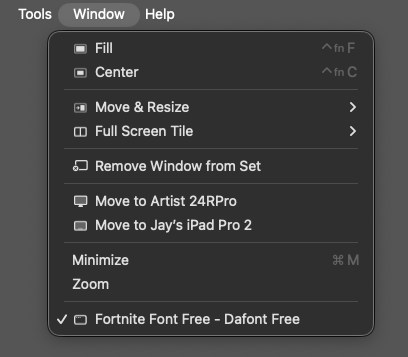
One click, and Firefox popped back onto my main monitor as if nothing had ever happened. Who knows where it was rendering before – some phantom display arrangement from a previous life, presumably.
As a delightful bonus, I discovered an option in that menu I’d never tried before: Move to iPad. Thanks to Continuity (Sidecar), macOS will happily hand a window over to your iPad, effectively turning it into an easy third display. Not what I needed that day, but very good to know it’s one menu click away.
Option 4: Rearrange your displays (and put them back)
Head to System Settings – Displays – Arrange and briefly drag one display to a different relative position, then drag it back. This fires a display-configuration event that makes every running app re-validate its window positions. It’s the “turn it off and on again” of window management, and it often shakes loose windows without touching the app itself.
Option 5: Reset Firefox’s window geometry (xulstore.json)
If all else fails, Firefox stores its window positions in a file called xulstore.json inside your profile folder. Quit Firefox completely (Cmd+Q), then open Terminal and run:
cd ~/Library/Application\ Support/Firefox/Profiles/*.default-release/
mv xulstore.json xulstore.json.bak
Relaunch Firefox and it opens with default window positioning, dead centre on your main display. Your tabs, session, bookmarks and everything else are untouched – this file only holds UI geometry. Note that we’re moving the file aside rather than deleting it: preserve before touch, as always. If anything looks odd afterwards, you can move it back.
Conclusion
This isn’t a Firefox-specific problem, by the way – any macOS app can lose a window off-screen after a display change. The same toolbox applies: try Zoom, try Mission Control, and above all remember that Window – Move to Display exists. It’s the most direct fix of the lot, and judging by how rarely it’s mentioned, one of the least known.
No new computer required. This time. 😄