
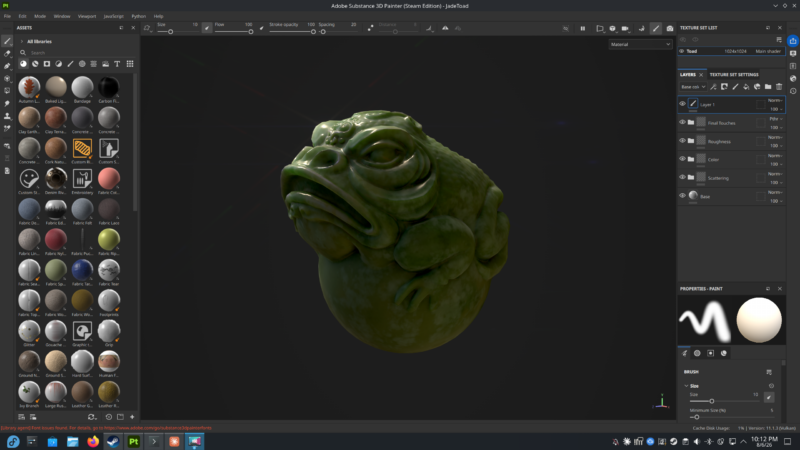
Substance Painter is one of the few applications for which Adobe develop a Linux version. It’s possibly a contractual overhang from the Allegorithmic days. Typically we don’t get access to it through the Creative Cloud app, and only special contract holders can download this version from Adobe. However, Steam lets Linux users either download the Windows version and run it via Proton, or use the native Linux version.
They compile it with enterprise distros in mind, which is inevitably something we’re probably not running. I’m on Fedora, and of course it didn’t work out of the box. Thankfully with two simple changes, I can now run Substance Painter without trouble. We need to make sure Steam runs the native Linux build, and create a symbolic link to a library that it’s expecting a version Fedora no longer ships.
These instructions were written with Substance Painter 2025 (Creative Cloud v11 equivalent) in mind, applied on Fedora 43 and verified still working on Fedora 44. Newer releases may have made changes to this approach, but perhaps this points you in the right direction.
Tweaking Steam to run the native Linux version
Steam may want to give you the Windows build via Proton by default. We want the native Linux version instead: in your Library, right-click the title, choose Properties, then head to the Compatibility tab. Make sure it’s set to something that’s not Proton — either untick “Force the use of a specific Steam Play compatibility tool” entirely, or select the Steam Linux Runtime from the dropdown. If Steam had installed the Windows version, it’ll re-download the Linux build after this change.
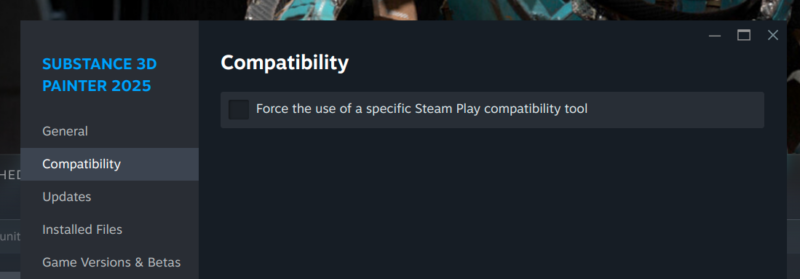
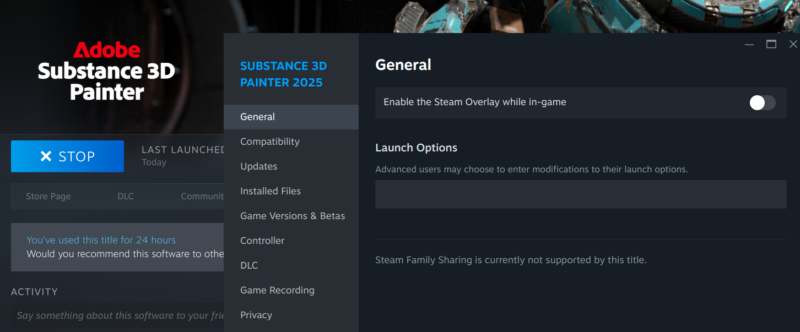
You can verify which version you have via the info icon on the game’s page. No launch options are needed, by the way — I experimented with disabling the Steam Linux Runtime via launch flags during troubleshooting, and it turned out to be unnecessary. The launch options field can stay empty; the symlink below is the fix that actually matters.
Symlinking that hard-coded library
With the native version installed, launching it on Fedora fails because Substance Painter was built against libtiff.so.5 — an older TIFF library version that enterprise distros still carry, but Fedora has long since moved on to libtiff.so.6. The old soname simply doesn’t exist on our system, so the app refuses to start.
The fix takes one line: we place a symbolic link named libtiff.so.5 inside the game’s own directory, pointing at the system’s libtiff.so.6. Steam applications look for libraries in their install folder before the system paths, so the app finds “its” library there and loads happily:
sudo ln -s /usr/lib64/libtiff.so.6 ~/.steam/steam/steamapps/common/'Substance 3D Painter 2025'/libtiff.so.5Adjust the path if your game lives in a different Steam library (mine has moved between drives since — pleasingly, Steam moves game folders symlink and all, so the fix travels with it). Note the quotes around the folder name: it contains spaces.
One honest caveat: pointing a .so.5 name at a .so.6 library crosses a version bump, so this is a “works in practice” bridge rather than a guaranteed-safe one — Substance Painter evidently only uses the stable parts of the TIFF API, because it’s been running without a hiccup for over 24 hours of logged use here, texture sets, exports and all.
A harmless warning you’ll see
Once running, you may spot a red message along the bottom of the window: “[Library agent] Font issues found. For details, go to adobe.com/go/substance3dpainterfonts”. That’s Adobe’s own font tooling grumbling about the fonts available on Linux — it’s cosmetic, the app works fine regardless, and you can safely ignore it.