
A few years ago I installed an NVIDIA driver on Linux for an RTX 2080, and I have the mental scars to prove it. Blacklisting something called nouveau by hand. Rebuilding the initramfs. Blind-typing seriously scary commands into a broken console, wondering whether the next reboot would produce a desktop or a blinking cursor. My conclusion at the time: even though NVIDIA technically had a Linux driver, it may as well not have existed, because there was no humane way to actually install the thing.
Fast forward to my ThinkPad P15 Gen2 with its RTX A5000, freshly dual-booted with Fedora 44 (that story is its own article). The same task in 2026: two dnf commands, one background compile, and a blue firmware screen you should be warned about. Everything I once did manually with trembling hands — the nouveau blacklist, the initramfs rebuild, the X configuration — still happens. It’s just done for you now, inside RPM Fusion’s packaging. The tooling has quietly become further ahead than most of the documentation.
Which brings me to this article’s reason for existing: nearly every NVIDIA-on-Fedora guide either assumes Secure Boot is off or waves at it in a footnote. Then readers with Secure Boot enabled — which is the factory default on every modern laptop — hit an unexplained “module not found” after reboot and conclude the driver is broken. So this guide treats Secure Boot as the default case. It’s also the story of how I got the enrollment ceremony wrong three times, so you can get it right once.
Step 1: RPM Fusion in one command
NVIDIA’s proprietary driver lives in the RPM Fusion repositories. Adding them (free and nonfree) is a single command:
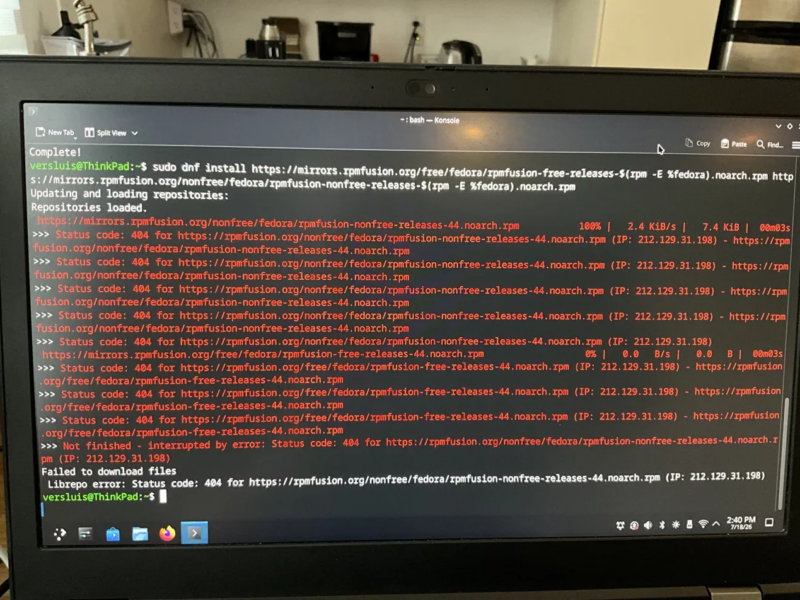
sudo dnf install https://mirrors.rpmfusion.org/free/fedora/rpmfusion-free-release-$(rpm -E %fedora).noarch.rpm https://mirrors.rpmfusion.org/nonfree/fedora/rpmfusion-nonfree-release-$(rpm -E %fedora).noarch.rpmThe $(rpm -E %fedora) is bash command substitution filling in your Fedora version number automatically — it expands to 44 on Fedora 44, so this command survives every upgrade without editing.
A war story from my own terminal: I hand-typed this and got a wall of red 404 errors from the mirror. The command substitution I’d been slightly nervous about had worked flawlessly — I could see “44” correctly resolved in every failing URL. The culprit was plain English: I’d typed releases instead of release. Both times. The eye glances at a word and the brain fills in what it assumes. Diagnostic tip hiding in that failure: a 404 means the server was reachable and the filename was fictional; a connection error means the network path is the problem. The error type tells you where to look.
Step 2: akmod, not kmod
sudo dnf install akmod-nvidia xorg-x11-drv-nvidia-cudaWhy akmod-nvidia and not a plain kmod? A kmod is a kernel module pre-built for one specific kernel version — the moment a kernel update arrives, it’s obsolete until someone rebuilds it. An akmod ships the source plus a build system that automatically recompiles the module against every new kernel, locally, as needed. On Fedora’s brisk kernel cadence, akmod is the only sane choice: kernel updates arrive frequently, and you want the driver to simply follow along without your involvement.
The CUDA package is optional but recommended — it brings the compute libraries and, importantly, nvidia-smi, the diagnostic tool we’ll use to declare victory. Don’t be misled by the xorg-x11 prefix: the package name is a fossil from the era when everything was X-prefixed. CUDA talks to the kernel module directly and works identically under Wayland, which is where Fedora lives now anyway.
Step 3: the patience step
Here’s the trap that catches almost everyone: when dnf says “Complete!”, the driver is not ready. The akmod system compiles the kernel module in the background after the transaction finishes — a full module build takes five to ten minutes even on quick hardware. Reboot too early and you get a fallback driver, a low-resolution desktop, and some unearned panic.
Verify before you reboot:
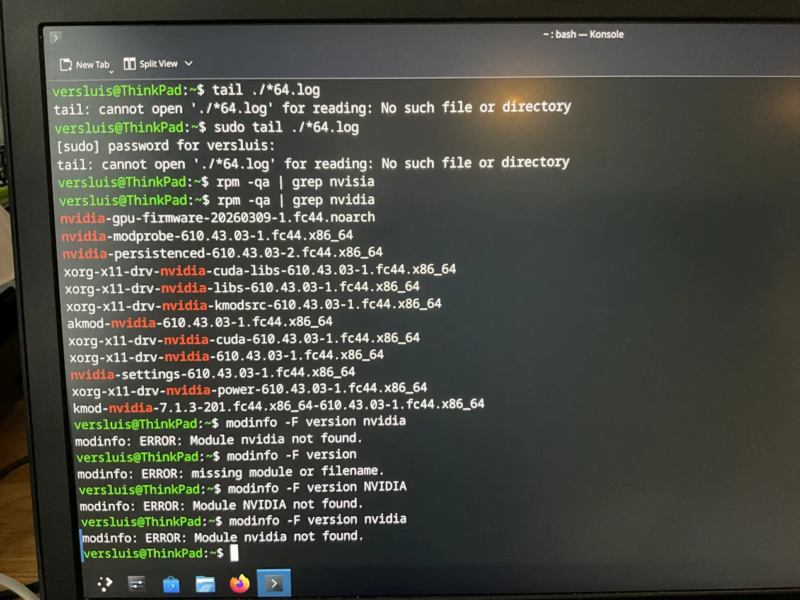
modinfo -F version nvidiaA version number (610.57.04, say) means the module is built and staged. “ERROR: Module nvidia not found” means it’s still compiling — wait and retry. If you want to watch it work, journalctl -u akmods -f follows the build log live. One thing that does not work: watching the numbers in ps aux and mistaking them for a progress counter, as I briefly did. Those columns are memory usage, and a number that goes down is your first clue that you’re not looking at a counter. Know what you’re measuring.
Related patience note: if your shutdown hangs for several minutes right after a driver or kernel install, that’s likely akmods finishing a compile and holding the shutdown hostage until it’s done. Let it. A forced power-off mid-build just means rebuilding on the next boot.
Step 4: Secure Boot and the MOK ceremony
Check where you stand:
mokutil --sb-stateIf it says disabled, skip this entire section and reboot freely. If it says SecureBoot enabled — the default on modern machines — read on, because this is the part most guides skip, and skipping it guarantees failure.
Under Secure Boot, the kernel refuses to load any module that isn’t signed by a trusted key. Fedora’s kernel and its own modules are signed by Fedora’s certificate, which ships pre-enrolled. Your locally compiled NVIDIA module is signed by a locally generated key — and the firmware has never heard of it. The Machine Owner Key (MOK) system is how you introduce them.
The akmods installation generates the signing key pair automatically (if you run sudo kmodgenca -a and it reports an existing key pair, say no to overwriting — your modules are already signed with the existing key, and replacing it would orphan them). What you must do by hand is stage the public key for enrollment:
sudo mokutil --import /etc/pki/akmods/certs/public_key.derIt asks you to create a password. This is a one-time enrollment password, not your login — something simple you can retype in a minute, discarded after use. The tool prints nothing on success; old-school Unix minimalism where silence means it worked.
Verify before you reboot — this saves you laps
sudo mokutil --list-newThis shows the pending enrollment queue, and it must show your certificate before you reboot. Note the sudo: this was one of my hard-won lessons. Run without root, mokutil often can’t read the EFI variables — and instead of saying “permission denied”, it silently shows the same empty result as a genuinely empty queue. In the same session, openssl honestly told me “Permission denied” for a similar read while mokutil said nothing at all. Tools that fail loudly are a gift; tools that fail silently cost me two reboots.
The blue screen: it’s a question, not a formality
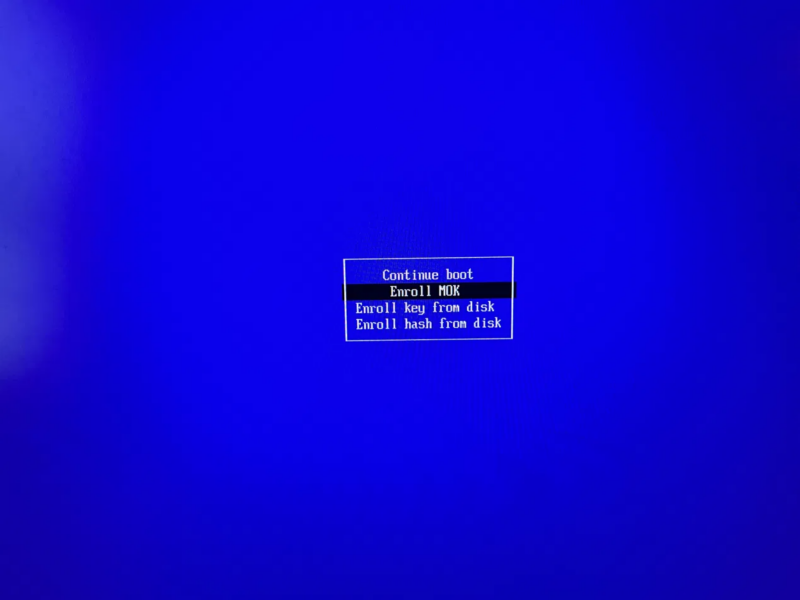
Reboot. Instead of booting normally, you’ll be greeted by a blue MOK Management screen — this is the firmware talking, pre-OS, and it’s expected. Now, the traps, all of which I personally fell into so you don’t have to:
- The countdown is a fuse. “Press any key to perform MOK management” times out after a few seconds, boots on without enrolling, and discards your staged request. Silence means no. If you miss it, you re-import and go again — the offer is one-shot.
- Navigate: Enroll MOK → Continue → Yes → password. Ignore the “from disk” options; those are for keys on external media.
- The password prompt fires on the final keystroke. MokManager stored your password at import time, so it knows exactly how long it is — the instant the last character lands, it proceeds. No Return key, no pause to grab your phone for a photo mid-password. Ask me how I know.
- The keyboard layout is US at this screen, in case your password contains anything exotic.
Verify after: the list must contain YOUR key
Back at the desktop:
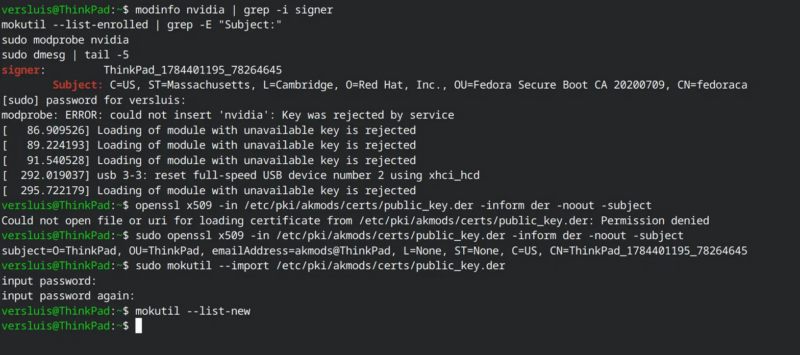
sudo mokutil --list-enrolled | grep Subject:You need to see two subjects: Fedora’s own Secure Boot CA (CN=fedoraca — pre-enrolled on every Fedora install) and your machine’s local key (something like CN=YourHostname_1234567890). Here’s the subtle trap that cost me my longest debugging lap: fedoraca alone looks like success if you don’t know it’s always there. Even the MokManager menu showing a “Reset MOK” option isn’t proof your key went in. The only proof is your machine’s key appearing in that list. My kernel spent an afternoon telling me, with perfect honesty, “Loading of module with unavailable key is rejected” — while every check I ran appeared to confirm enrollment had succeeded. The kernel was right. My verification was wrong.
If you ever need to confirm the match yourself, compare the module’s signer against the key on disk:
modinfo nvidia | grep -i signer
sudo openssl x509 -in /etc/pki/akmods/certs/public_key.der -inform der -noout -subject
The CNs must agree with each other, and that CN must appear in the enrolled list. Three-way agreement, no faith required.
Step 5: proof of life
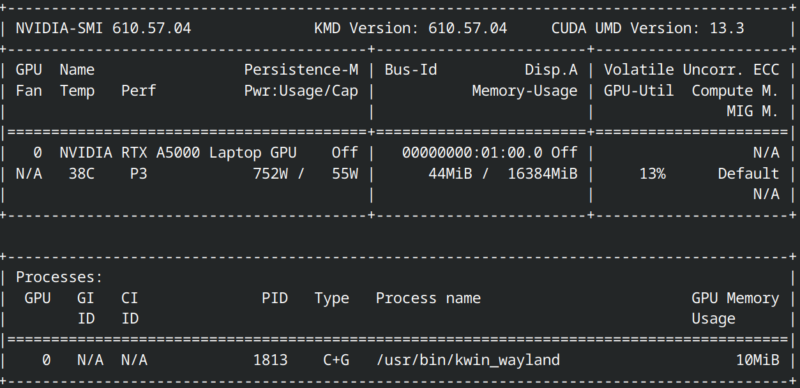
nvidia-smiA box-drawn table with your GPU’s name, driver version, and temperature means you’re done — properly done, with Secure Boot still enabled and every future akmod rebuild automatically signed with your now-trusted key. You never see the blue screen again. When the next kernel update arrived on my machine, the module rebuilt, re-signed, and loaded without my involvement: the entire self-maintaining loop, demonstrated rather than assumed.
A bonus you’ll notice on laptops: with the proper driver in place, runtime power management works. My A5000 now suspends almost entirely when idle — quiet fans, real battery life — and wakes when an application wants it. That silence was the entire reason this laptop got a Linux side in the first place.
Troubleshooting: reading the kernel’s mind
If nvidia-smi reports it “couldn’t communicate with the NVIDIA driver”, the module isn’t loaded. Make the kernel state its objection explicitly:
sudo modprobe nvidia
sudo dmesg | tail -20
The error text sorts the suspects cleanly:
- “Key was rejected by service” / “Loading of module with unavailable key is rejected” — signature problem. The signing key is not enrolled (or not the one you think is enrolled). Run the three-way agreement check above and redo the MOK ceremony with verification at every gate.
- “Module nvidia not found” — the module doesn’t exist for the running kernel. Compare
uname -ragainstrpm -qa | grep kmod-nvidia; if they disagree,sudo akmods --forcebuilds it in the foreground with honest output. - Nouveau holds the GPU (
lsmod | grep nouveaushows it loaded) — usually a first-boot race where the fallback service loaded nouveau while akmods was still compiling. A clean reboot resolves it, provided the signing is right. Amusingly, on my A5000 nouveau’s own initialisation failed anyway (“gsp: init failed, -110”) — on recent hardware the fallback isn’t much of a fallback, which makes getting the proper driver loaded all the more worthwhile.
The whole ritual on one page
- Add RPM Fusion (free + nonfree) — mind the singular “release”
sudo dnf install akmod-nvidia xorg-x11-drv-nvidia-cuda- Wait for
modinfo -F version nvidiato return a number - If Secure Boot is on:
sudo mokutil --import /etc/pki/akmods/certs/public_key.der, then verify withsudo mokutil --list-new - Reboot; catch the blue screen promptly; Enroll MOK → Continue → Yes → password
- Verify:
sudo mokutil --list-enrolledmust show fedoraca and your machine’s key nvidia-smi— admire the table
Verify the key is pending before rebooting, and verify it’s enrolled after — with your machine’s key in the list, not just Fedora’s. That one sentence would have saved me three laps around the block. Now it’s yours for free.